SQL Server Partition Management
Manage Your SQL Server System Partition without Reboot
Q: Our company has one SQL server, the hard drive is totally 2TB. There are two partitions there. C drive owns 10GB, while E drive has the rest space. After a couple of months, the space on C drive is not enough now, we want to split some space from E to C. How can I do this kind of SQL server partition management? If there is any possibility that the data in SQL will lost?
A: For SQL server partition management, there are something you need to understand:
1. A good management of the SQL server will optimize the performance of the server itself.
2. Most of partition software will not cause data loss while doing repartition, unless you want to delete or reformat the partition;
3. Now that your computer is SQL Server, some common partition software for desktop systems doesn't match;
4. To enlarge the system partition, a reboot is usually required while some of the server partition software will not, like EaseUS Partition Master Server Edition.
So, according to these three conditions, you will see that only EaseUS Partition Master Server Edition can do SQL server partition management. With this powerful server partition tool, you may perform basic and advanced partition operations on your servers without data loss, including: Resize and Move partitions, Copy Partition, Copy Disk, Create and Delete partitions, Format partitions, Convert partitions, Explore partitions, Hide and Unhide partitions, etc.
How to partition SQL Server?
To do SQL Server partition management, you'd better kill SQL process, and split some space from E, and extend this free space into C drive, then you don't need to reboot. This is the shining feature of EaseUS Partition master.
Follow the steps below, you can do SQL Server Partition Management easily:
The following is step-by-step instruction to extend system partition (C: drive).

1. Launch EaseUS Partition Master.
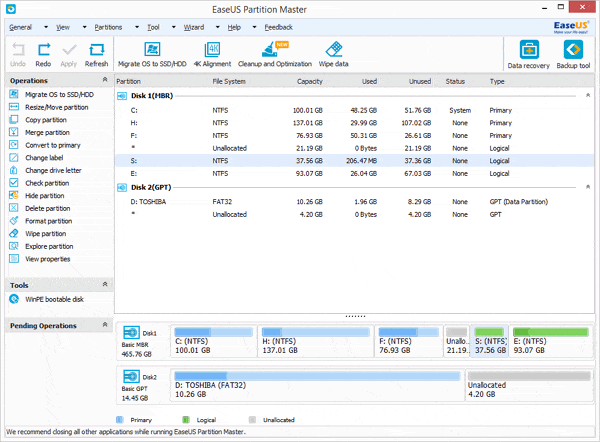
2. Select partition E:, right click it, select "Resize/Move partition" and drag the partition handle leftwards to resize E drive. Then there will be unallocated space behind E: drive.
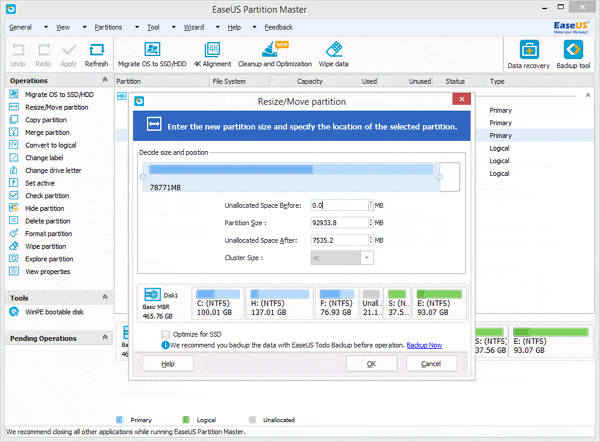
3. Move E: drive rightwards to let the unallocated space be behind the system partition (C: drive) and click OK.

4. Select the system partition (C: drive), right click it and select "Resize/Move partition", drag the partition handle rightwards to extend system partition (C: drive).
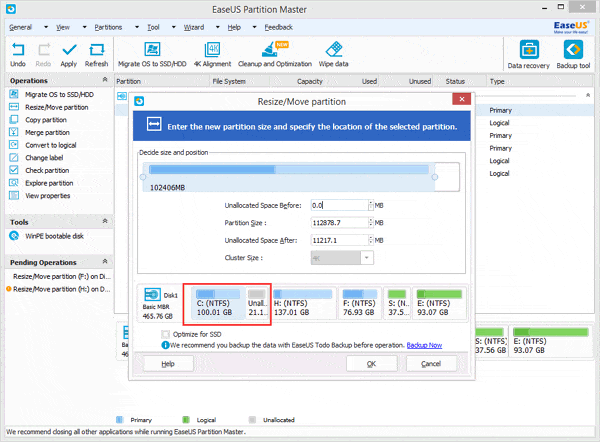
5. Click Apply.

